
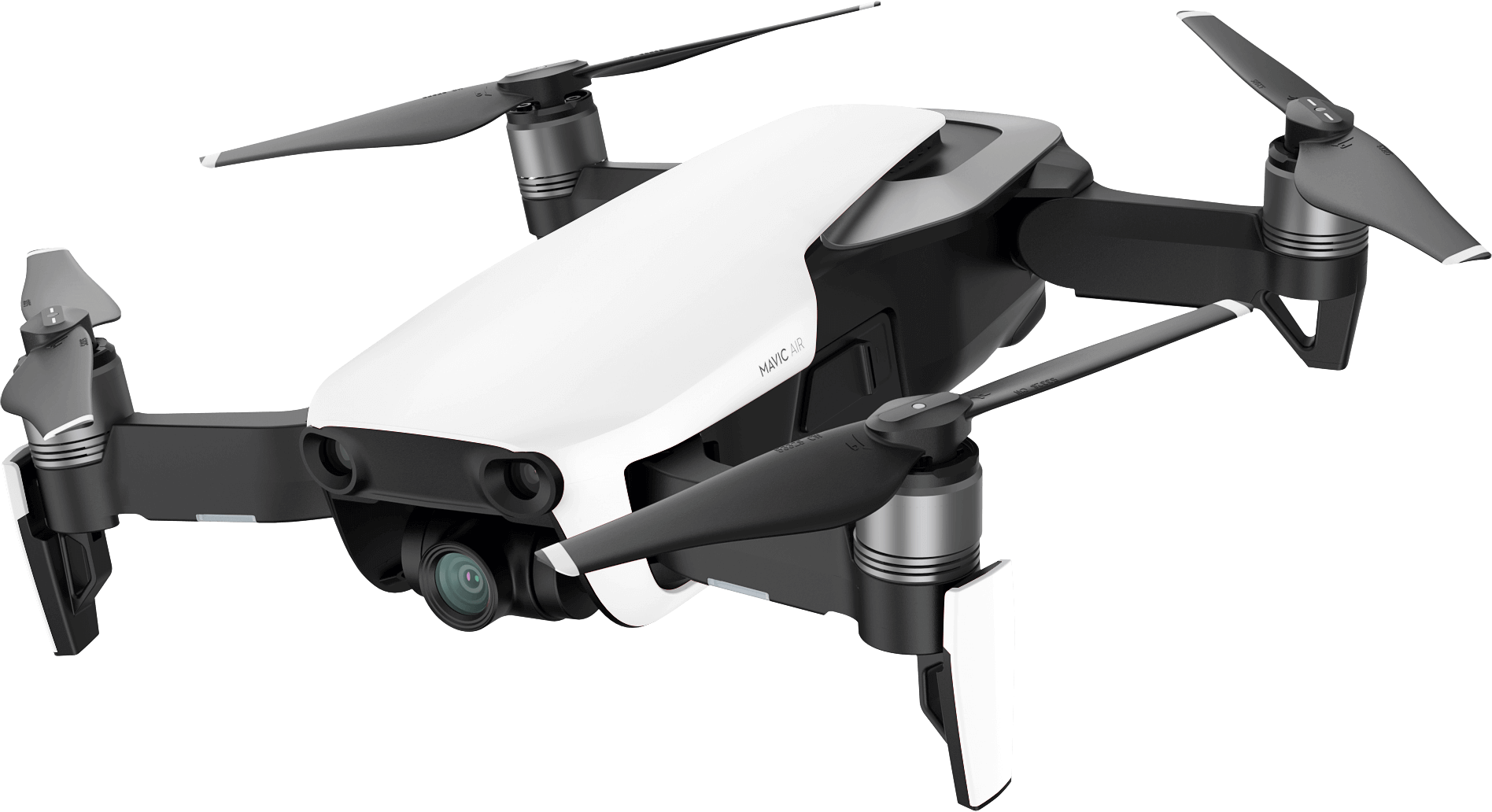
- Turn Tablet On.
- Set to Full Brightness and Volume.
- Ensure WiFi is On.
- Delete All History.
- Turn Remote On.
- Turn Mavic Air On.
- Connect USB.
- Will Auto Connect to DJI GO 4.
- Ignore Database Update and Go Fly.
- When Open and Running OK Enter Satellite Map View.
- When Map Fully Loaded Zoom Out to Required Area.
- Do Not Exit DJI GO 4.
- Enter Tablet Settings and Turn WiFi Off and Aeroplane Mode On While Map Still Loaded.
- Go Back to the DJI GO 4 App then put Tablet on Standby.
- Disconnect USB. Tablet may Turn On Again, Put On Standby Again.
At Flight Area:
Turn Remote On.
Turn Mavic Air On.
Connect USB.
Start Tablet.
Good to Go.

Rio Chama Basin Headwaters Trout Fishing
Rio Chama Basin Headwaters Trout Fishing
0 Comments